Small Portfolio Layout
lets have a look at how to make a
small portfolio layout, this tutorial requires a doc type for internet explorer
to centre it.
Type the
following HTML
<div id="wrapper">
<div id="nav">
<img src="avatar.jpg" width="100" height="100"
alt="avatar" />
<ul>
<li>Homepage</li>
<li>My Work</li>
<li>Contact Me</li>
</ul>
</div>
</div>
and add the following CSS
body
{
margin: 0px;
background-color: #f1f1f1;
}
#wrapper
{
margin-left: auto;
margin-right: auto;
width: 900px;
margin-top: 30px;
}
#nav
{
width: 100px;
float: left;
}
ul,li
{
margin: 0px;
padding: 0px;
list-style-type: none;
}
li
{
margin-top: 20px;
margin-bottom: 20px;
color: #646464;
font-family: arial;
}
you should have something like this
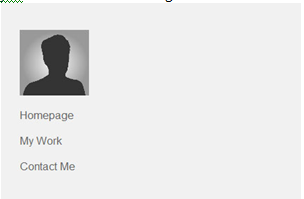
so now lets add the next part to our
portfolio layout. We are going to add a title and some content so type the
following HTML.
<div id="main">
<div id="title"></div>
<div id="content"></div>
</div>
</div>
and add the following CSS
#main
{
width: 750px;
margin-left: 50px;
height: 700px;
float: left;
}
#title
{
width: 300px;
height: 70px;
background-image: url('portfolioHeader.png');
}
#content
{
width: 600px;
color: #5c5c5c;
font-family: arial;
font-size: 10pt;
}
#icon
{
position: absolute;
width: 100px;
height: 100px;
background-image: url('sound.png');
margin-top: 300px;
margin-left: 750px;
}
Now add in the sound image HTML,
this goes before everything else in the wrapper
<div style="position:
relative;"><div id="icon"></div></div>
This is
because its using position absolute which breaks out of the content flow but by
wrapping it inside a position relative it becomes relative to the parent which
is the wrapper so it becomes back in the flow.
