Table Styling
Now we are going to style a table,
this tutorial doesn't work in internet explorer as that only supports hover on
anchor tags
So lets have a look at how this is done:
<table
id="demoTable">
<tr
id="demoTableHeader"><td>Header</td><td>Header</td><td>Header</td><td>Header</td></tr>
<tr class="demoTableRow"><td
class="border">content</td><td
class="border">content</td><td
class="border">content</td><td
class="border">content</td></tr>
<tr class="demoTableRow"><td
class="border">content</td><td
class="border">content</td><td
class="border">content</td><td
class="border">content</td></tr>
<tr class="demoTableRow"><td
class="border">content</td><td class="border">content</td><td
class="border">content</td><td
class="border">content</td></tr>
<tr class="demoTableRow"><td
class="border">content</td><td
class="border">content</td><td
class="border">content</td><td
class="border">content</td></tr>
<tr class="demoTableRow"><td
class="border">content</td><td
class="border">content</td><td
class="border">content</td><td
class="border">content</td></tr>
</table>
and the CSS
#demoTable
{
border-collapse:collapse;
border: 1px solid #147cdd;
text-align: center;
}
#demoTableHeader
{
background-color: #147cdd;
}
.demoTableRow
{
height: 40px;
}
tr.demoTableRow:hover
{
background-color: #e2e9ef;
}
.border
{
border: 1px solid #147cdd;
padding-left: 5px;
padding-right: 5px;
}
Now
there's a lot going on here so lets break this down, we do need to assign a lot
classes here but its pretty straight forward. First we create a table tag and
give it an id called demoTable, this is because there could be other tables on
this page and if we use styling rules for the table tag it will apply to all
and we don't want that just the table that we are using currently.
So for the table we collapse the border and this removes the border of each
cell, then we add an outside border of 1 pixels and center align all of the
text in the table.
Next we need to style the header part of the table, we do this by just simply
setting a background-color to it. Next we set a border of 1px to each of the
cells apart from the header.
The last thing we need to do is add a hover to the rows of the table so the
user can see what they have there cursor over.
Form Styling
Now we move onto form styling, where
we change the colours of the buttons and text fields to remove the standard
default settings. So lets style a login form
So lets have a look at the code;
<html>
<head>
<link rel=”stylesheet” type=”text/css” href=”style.css”>
</head>
<body>
<form action="#" method="post">
<table>
<tr><td>Username:</td><td><input
class="field" type="text" /></td></tr>
<tr><td>Password:</td><td><input class="field"
type="password" /></td></tr>
<tr><td></td><td align="right"><input
class="button" type="submit" value="Login"
/></td></tr>
</table>
</form>
</body>
</html>
and the CSS
.field
{
width: 200px;
}
.button
{
background-color: #f4f4f4;
border: 1px solid #dadada;
width: 100px;
height: 25px;
}
Okay so we
have wrapped a table inside the form so that we can have everything in position
so it looks neat and tidy. There's not much CSS happening here, the text field
we define it a larger width to make it wider and we add a background-color and
border to the submit button and increase its width and height.
Login Form
Lets have a look at how to make a
simple clean login form in CSS, in this tutorial we will only be focusing on
the styling of the form and page not the server sided programming to it. If
your using internet explorer you will need a doc type
So start by adding this HTML
<div id="wrapper">
</div>
and add the CSS rules for this
body
{
background-color: #eaeaea;
}
#wrapper
{
width: 560px;
height: 160px;
background-color: #f6f6f6;
margin-left: auto;
margin-right: auto;
margin-top: 100px;
border: 1px solid #dadada;
padding: 20px;
color: #444444;
}
Now we have our basic layout shape
its time to add some content inside of it.
to do this lets add a heading like this and some filler text
<h1>Login Form</h1>
Lorem ipsum dolor sit amet, consectetur adipiscing elit. Vivamus gravida ante
sed nulla interdum id ultricies mauris posuere. Aenean auctor lacinia tellus a
elementum.
and lets style the heading like so
h1
{
padding: 0px;
margin: 0px;
font-size: 14pt;
color: #287fe2;
font-family: arial;
}
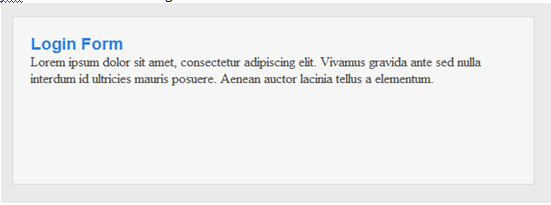
you should have something like this
now lets add in the actual login
form so add the following HTML
<form action="#"
method="post">
<table>
<tr><td>Email Adress</td><td><input
type="text" id="textBox" /></td><td
rowspan="2"><input value="Login"
type="submit" id="button" /></tr>
<tr><td>Password</td><td><input
type="password" id="textBox"
/></td><td></td></tr>
</table>
</form>
Now we need to style this form so
lets use this CSS
form
{
margin-top: 20px;
}
#button
{
margin-left: 5px;
width: 50px;
height: 65px;
}
#textBox
{
width:300px;
height: 25px;
}
#button,#textBox
{
border: 1px solid #dddddd;
color: #444444;
background-color: #f2f2f2;
}
and that
is all there is to it.
